 This is a read-only archive of the inkscapeforum.com site. You can search for info here or post new questions and comments at
 Hello folks
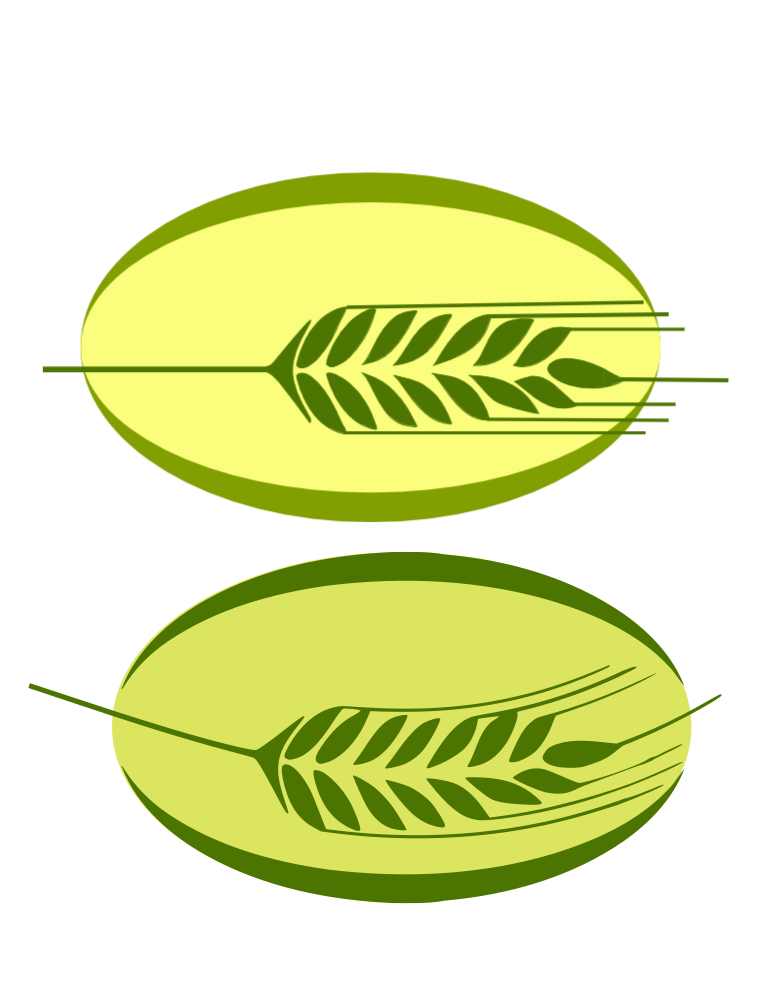
I`ve created an image with small other images and I'm trying to find where / how to assemble them into one "new" picture. I`ve seen the "Group" option, but it does not work for me, because I want to add a curve effect (not skew) on this image, but when I try to edit path by adding nodes (F2), it gives me the option to edit the small images and not the whole thing.
How can I solve this little problem???
Thanks a lot.
Renan.
Unifying to Make a Curve effect

Re: Unifying to Make a Curve effect

Welcome Renan!
I think I understand what you're describing, but I'm not sure. Are the "small other images" imported raster images? Or are they vector images? Can you show us an example of what you want to do. I have an idea about making a curve with several small images, but there's no way to know if it's what you want to do. Plus, when you said "not skew", I can't quite imagine what that would be, so that I can't use it as a comparison to what I'm thinking. And I can't imagine adding a node to what I'm thinking. So I need some clarification, if you can.
Meanwhile, this might help (but again, I'm not entirely clear). You can select more than one object at a time, by holding the Shift key. After that, you can use Path menu > Combine, to make them all sub-paths of the same one compound path. Then when you select one (with the Node tool), you select them all. The problem with that is they will all be given the same style (color, opacity, stroke width, etc.). So that if these other small images have different styles, then combining them into a single compound path won't work.
But I probably need a little more info, before I can offer a reasonable solution

Basics - Help menu > Tutorials
Manual - Inkscape: Guide to a Vector Drawing Program
Inkscape Community - Inkscape FAQ - Gallery
Inkscape for Cutting Design
Manual - Inkscape: Guide to a Vector Drawing Program
Inkscape Community - Inkscape FAQ - Gallery
Inkscape for Cutting Design
-
renangomes
- Posts: 3
- Joined: Mon Aug 13, 2012 9:18 am
Re: Unifying to Make a Curve effect
Hello Brynn,
Thank you (in advance) for you support.
Enclosed you'll find the image I'm trying to unify.
The wheat image if formed by a bunch of other small images (all of them were drawed in Inkscape, which means, they are vector images.
The idea is to make this wheat image folows the bottom curve of the back oval image.
Thank you (in advance) for you support.
Enclosed you'll find the image I'm trying to unify.

- path3107.png (42.14 KiB) Viewed 1613 times
The wheat image if formed by a bunch of other small images (all of them were drawed in Inkscape, which means, they are vector images.
The idea is to make this wheat image folows the bottom curve of the back oval image.

Re: Unifying to Make a Curve effect
I think you want to combine (path menu) all your little paths for the wheat and then use path effects - add - bend (path menu) You can then use the  to bend it as much as you want...
to bend it as much as you want...- Attachments
-

- g4055.png (16.29 KiB) Viewed 1590 times
-
- wheat.svg
- (89.39 KiB) Downloaded 152 times
Your mind is what you think it is.
Re: Unifying to Make a Curve effect
Ooohh -- I just realized what you meant by "not skew", now that I see your image.
Yes, druban has the solution
I do see a little "glitch" in druban's screenshot, and I'm not sure if that's attributable to the Bend LPE or not? Ooohh -- I guess he must have used Trace Bitmap to "vectorize" your PNG, in order to demonstrate the technique. That's probably what created the glitches. So yours will still look more like it does in your screenshot, with Bend applied. There's another LPE called Envelope Deformation, which works in the same way, except that you have 4 "bend paths". Possibly you could use the 4 paths to really fine tune the bending of the object. But this is really exactly the type of situation that Bend was designed for
Yes, druban has the solution
I do see a little "glitch" in druban's screenshot, and I'm not sure if that's attributable to the Bend LPE or not? Ooohh -- I guess he must have used Trace Bitmap to "vectorize" your PNG, in order to demonstrate the technique. That's probably what created the glitches. So yours will still look more like it does in your screenshot, with Bend applied. There's another LPE called Envelope Deformation, which works in the same way, except that you have 4 "bend paths". Possibly you could use the 4 paths to really fine tune the bending of the object. But this is really exactly the type of situation that Bend was designed for
Basics - Help menu > Tutorials
Manual - Inkscape: Guide to a Vector Drawing Program
Inkscape Community - Inkscape FAQ - Gallery
Inkscape for Cutting Design
Manual - Inkscape: Guide to a Vector Drawing Program
Inkscape Community - Inkscape FAQ - Gallery
Inkscape for Cutting Design
-
renangomes
- Posts: 3
- Joined: Mon Aug 13, 2012 9:18 am
Re: Unifying to Make a Curve effect
Guys,
thank you very much for the help.
It was exactly what I needed!
thank you very much for the help.
It was exactly what I needed!