Thick Acrylic Filter Truncating Objects - Help!

Post questions on how to use or achieve an effect in Inkscape.
Anatosuchus
Posts: 2
Joined: Fri Sep 07, 2012 1:47 am

Thick Acrylic Filter Truncating Objects - Help!

Postby Anatosuchus » Fri Sep 07, 2012 2:29 am

Hi,

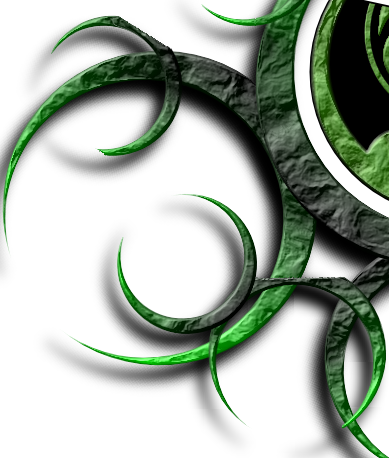
I'm trying to use the thick acrylic filter on some objects, but it is having side effects which are effectively truncating the objects on which I run the filter. In the attached image, all the crescents should be the same, but as you can see the ones at the top left and bottom right have been clipped in places (the top right has had one tip chopped off as well as the more obvious back section). Other objects are also suffering similar problems.

If I cut and paste the objects into different documents, sometimes they will still get clipped (along the same lines, not randomly) and sometimes they won't, which is particularly confusing. This is not an on-screen rendering issue as the clipping is still there if I export to a bitmap format. The bounding boxes on these objects have already been increased way beyond the object boundaries when the filter was activated, and as you can see the clipped regions aren't aligned with the XY pixel grid anyway.

Any assistance on this would be very gratefully received!
filter_example_1.png
Example of filter clipping
filter_example_1.png (160.16 KiB) Viewed 1673 times


EDIT: Just realised I should mention the platform: this is on Ubuntu 64-bit, though I've just tried on another machine with the same architecture and don't seem to be able to reproduce the problem.

Thanks!

Matt.

User avatar
brynn
Posts: 10309
Joined: Wed Sep 26, 2007 4:34 pm
Location: western USA
Contact:

Re: Thick Acrylic Filter Truncating Objects - Help!

Postby brynn » Sat Sep 08, 2012 9:12 am

Image
Welcome Matt!

It's hard to say what the problem might be, without having the SVG file to examine. It sounds like you may have already found a clue, by trying on a different machine. Would you be able to show us the SVG file?

Adding a filter to an object will always cause the bounding box to become larger. How much larger depends on which filter primitives are used, and/or their unique settings. Usually it's attributable to blur and/or offset in the filter, and often there is a lot of blur in filters.

:o Ooohh....I was about to say that I don't observe that problem on a similar crescent (in Win7, 64-bit). But then I accidentally changed its color, and there occurs a very similar chopped off anomaly. I have absolutely no explanation for it. But I can provide a screenshot and SVG file as well.
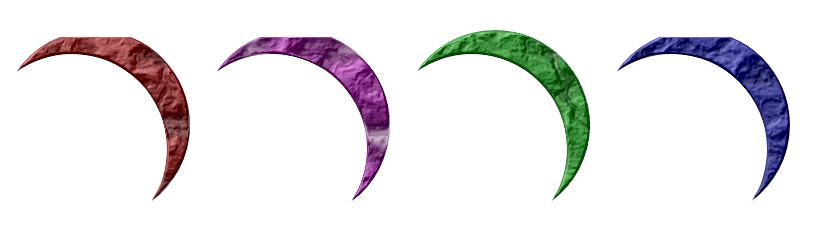
Please note that this might not be the same issue as you're having. But it looks stunningly similar, and no less mysterious. I first applied the dark green color to the crescent, removed stroke, applied filter. I changed the color using the Inkscape palette (bottom of page). The colors shown always cause the anomaly, while other colors never cause it. I haven't figured out why some colors cause this and some colors don't. Or how it happens. After I post this, I'll further. But again, I can't be sure this is the same problem, until we can look at your SVG file.

It looks a lot like what happens when the size of the filter isn't set large enough. But I don't understand why some colors cause it to show up, and others don't.

thick acrylic filter issue.PNG
thick acrylic filter issue.PNG (79.94 KiB) Viewed 1665 times


thick acrylic filter issue.svg
(6.2 KiB) Downloaded 152 times


Edit
Ok, I think I see what's happening. I don't entirely understand it, but I have a general idea.

The problem, indeed, is the size of the filter. Or more accurately, I think it's the placement of the filter, rather than the size alone. You can make a quick fix, by opening the Filters Editor. Look at the bottom part of the window, and click on Filter General Settings tab. There are 2 values each for Coordinates and Dimensions. If I change the one on the right for Coordinates, from -.25 to -.30, it fixes the problem. However, watch carefully all the objects to which you've applied this filter. Changing this on one selected object will affect all the objects to which you applied this filter. And it might not affect all of them in a positive way -- meaning that it might cause another problem somewhere.

If this does not fix your problem, then your problem and my problem are not the same! I don't understand why you don't see this issue on a different computer, so there's a good chance they aren't the same problem. But they look strikingly similar, to me!

Edit #2
Since the tip of one of your crescents is also missing, that could indicate that a different value on the Filter General Settings tab needs to be tweaked. But again, watch as you tweak, to make sure another problem doesn't pop up.

v1nce
Posts: 696
Joined: Wed Jan 13, 2010 4:36 am

Re: Thick Acrylic Filter Truncating Objects - Help!

Postby v1nce » Sun Sep 09, 2012 1:38 am

> Adding a filter to an object will always cause the bounding box to become larger

usually not always. Carefully designed filters don't always need a larger bb :)

I think you can fix this filter by using opacity/opacity for displacement map at step 6 (instead of opacity/green)
You probably could remove the blur at step 5 too.

User avatar
brynn
Posts: 10309
Joined: Wed Sep 26, 2007 4:34 pm
Location: western USA
Contact:

Re: Thick Acrylic Filter Truncating Objects - Help!

Postby brynn » Sun Sep 09, 2012 11:35 am

Yes, I did see that the problem could be fixed using the Displacement Map primitive. But I haven't studied that primitive yet, and only generally understand what it does. So rather than give instructions for something I don't fully understand, I gave instructions for what I do understand. Either way will work, but v1nce's is probably more correct. (afaiu)

Off topic:
v1nce wrote:> Adding a filter to an object will always cause the bounding box to become larger

usually not always. Carefully designed filters don't always need a larger bb :)

I'm not sure I can agree.


A filter effect is applied to a region defined relative to the object to which it is attached. By default, the Filter Effects Region ranges from −0.1 to 1.1 in units of the object's bounding box width and height.

I've just learned this, in my (and flamingolady's) quest to understand how to make filters. So the default new filter starts out as 0.1 bounding boxes larger than the bounding box (OMG could they make it more confusing!!) I think there would only be a few general cases where the bounding box could be smaller (than 1.2 bounding boxes^2) without truncating the object when the filter is applied. It certainly couldn't be smaller than the object's bounding box! In a very few cases, perhaps it might be between the same size as the object and 0.1 bounding boxes larger. But I'm not sure if it could be the same size as the bounding box. I guess maybe if the filter's effect is very, very small.

Of course, I still have much to learn about filters :D

Anatosuchus
Posts: 2
Joined: Fri Sep 07, 2012 1:47 am

Re: Thick Acrylic Filter Truncating Objects - Help!

Postby Anatosuchus » Sun Sep 09, 2012 7:20 pm

Hi,

I just wanted to say thanks for the feedback so far (and the welcome). I won't be in front of the machine displaying the problem for another day or two, but I will come back with some results when I get the chance - I haven't just asked and vanished!

Matt.

v1nce
Posts: 696
Joined: Wed Jan 13, 2010 4:36 am

Re: Thick Acrylic Filter Truncating Objects - Help!

Postby v1nce » Sun Sep 09, 2012 9:52 pm

A color is a mix up of red,gree,blue.
All those channels can range from 0 (black) to 1 (full red or green or blue)

Displacement map works this way :
you need to select
1 "image" (usually the object you're acting on)
1 "image" that will acts as a displacement map
1 length/strength for the filter
2 channels : 1 for horizontal displacement, 1 for vertical.
for every pixel to be drawn on screen it will look for the corresponding pixel in the displacement map.
Say you choose green channel for horizontal displacement, then it will look for green component at these pixel.
It will get a value ranging from 0 (no green) to 1 (full green).
Instead of displaying pixel at x,y from your original image it will seek for pixel at x + (green*length).

So the filter will have no effect if
green component is 0 or
length is 0

If the green component is the same for every pixel of your displacement map then it will act as an offset filter with
more length = more offset.
(There's no interest in using the filter that way ; use offset instead it will be way faster)

If all the pixels have the same green component then there will be few noticeable effect
that's why one usually choose a turbulence as a displacement map.
The displacement map is usefull for creating protuberance.
Try playing with displacementmap.length and turbulence.frequency in protuberance/ink bleed.
(By the way IMHO this filter is "buggy" ; set the displacementmap.length very high and try to guess why and to fix it)

> I'm not sure I can agree.

Yes you can :)

> It certainly couldn't be smaller than the object's bounding box!

You can do tons of filters that don't need to get outside of the bounding box.
Usually you need to set some extra-space only when you use the following
displacement map,
lighting,
blur,
offset,
morphology (if positive)


For all the other filter it's useless. You're just wasting CPU power for nothing.


Return to “Help with using Inkscape”