Welcome to InkscapeForum!
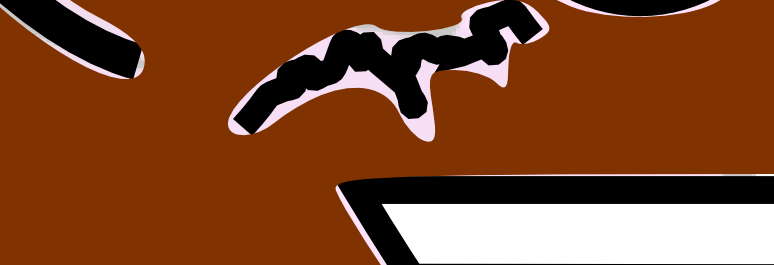
With the Paint Bucket tool engaged, look on the control bar for the Grow/Shrink setting. You may also be able to fine tune it further by adjusting the Threshold. If all the lines which define the spaces you're filling, are the same width, I would suggest using a Grow/Shrink value of half the width of the lines (for 1 px width, make G/S = 0.5).
You may still have to do some tweaking, especially in sharp corners with acute angles. And especially if the line widths vary, the G/S value may result it bits here and there that show outside the lines. One neat trick I like to use when doing the tweaking, is Snapping. After enabling snapping, set it up to Snap nodes and handles, and Snap to paths. Then drag the nodes of the brown object towards the black line (one at a time). When you get close enough, the node will jump off the mouse and snap to the path. Even with nodes snapped to the path, you still might need to adjust the node handles.
And one more tip -- about the squiggly black line in the middle, that's disconnected from the other lines, you won't need to go through contortions trying to get the brown object to fit it. Instead, you can delete all the nodes in that area. That will make the brown object solid underneath it. Oorrr....ok, it looks like the brown object is on top of the black lines at the moment. So at some point, you'll want to move it to the bottom. (Object menu > Lower)
Let us know how it goes

 This is a read-only archive of the inkscapeforum.com site. You can search for info here or post new questions and comments at