 This is a read-only archive of the inkscapeforum.com site. You can search for info here or post new questions and comments at
 Hi,
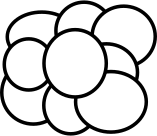
I have a picture with some overlapping circles:
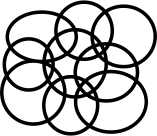
I would like to export it to HPGL, but in the result the circles are combined to a path so that it looks like this:
How can I combine the circles so that it looks like in the original picture?
I tried to use "Cut Path", but that is very laborious for so many overlapping objects.
Greetings,
Florian
Export to HPGL / Combine
Re: Export to HPGL / Combine
Hi.
A less accurate -but fastest way that may cover most of the needs- is to export the file as a png at a reasonable resolution,
then importing it back and using the trace raster image option.
That way you can have the right shape as one compound path, with black fill and no outline.
If you want to preserve the original image's style of the strokes, well than the easiest way is to edit them manually.
By adding new nodes to them near the intersections and opening some segments and deleting unwanted nodes.
A less accurate -but fastest way that may cover most of the needs- is to export the file as a png at a reasonable resolution,
then importing it back and using the trace raster image option.
That way you can have the right shape as one compound path, with black fill and no outline.
If you want to preserve the original image's style of the strokes, well than the easiest way is to edit them manually.
By adding new nodes to them near the intersections and opening some segments and deleting unwanted nodes.

Re: Export to HPGL / Combine
Hi.
A lot of "manual labour" is required but it's not impossible to do.
First select all the ellipses and make a copy (CTRL-D)
Group (CTRL-G) and move aside - this figure to be used as a guide later (too see the stacking order - which ellipsis is on top)
Select all the Ellipses from the original.
Do a stroke to path (CTRL-ALT-C)
Select two of the ellipses - make a copy as they will be "consumed" by the next operation.
Do a path intersection (CTRL-ALT-*)
Do not deselect anything before next stage -
Set fill to red - you will then see the intersection between the ellipses. Repeat until ALL the intersections are covered.
You will end up with something like this;

Then select all the black ellipses - make sure you got nine objects selected.
Perform a path exclusion (CTRL-ALT-^)
Do a path break apart - (SHIFT-CTRL-K)
Hopefully you now got something like this;

Now comes the fun part - delete all non essential segments. Refer to the copy made earlier.
(Make sure to keep the "essential" red segments.)
After this is done select the different parts (two a time - one red one black) and do a path combine (CTRL-K)
(I did two object at a time - selecting all objects resulted in some gaps.)
You will end up with this;

Depending on what you are using the HPGL file for (CNC - Laser Cut - Plasma?? ) you might have to manually join paths even further.
Good Luck
RGDS
Ragnar
A lot of "manual labour" is required but it's not impossible to do.
First select all the ellipses and make a copy (CTRL-D)
Group (CTRL-G) and move aside - this figure to be used as a guide later (too see the stacking order - which ellipsis is on top)
Select all the Ellipses from the original.
Do a stroke to path (CTRL-ALT-C)
Select two of the ellipses - make a copy as they will be "consumed" by the next operation.
Do a path intersection (CTRL-ALT-*)
Do not deselect anything before next stage -
Set fill to red - you will then see the intersection between the ellipses. Repeat until ALL the intersections are covered.
You will end up with something like this;

Then select all the black ellipses - make sure you got nine objects selected.
Perform a path exclusion (CTRL-ALT-^)
Do a path break apart - (SHIFT-CTRL-K)
Hopefully you now got something like this;

Now comes the fun part - delete all non essential segments. Refer to the copy made earlier.
(Make sure to keep the "essential" red segments.)
After this is done select the different parts (two a time - one red one black) and do a path combine (CTRL-K)
(I did two object at a time - selecting all objects resulted in some gaps.)
You will end up with this;

Depending on what you are using the HPGL file for (CNC - Laser Cut - Plasma?? ) you might have to manually join paths even further.
Good Luck
RGDS
Ragnar
Good Luck!
( ͡° ͜ʖ ͡°)
RGDS
Ragnar
( ͡° ͜ʖ ͡°)
RGDS
Ragnar
Re: Export to HPGL / Combine
It took quite some time, but thanks to your detailed explanation I finally managed to export the file successfully.
Thank you,
Florian
Thank you,
Florian
Re: Export to HPGL / Combine
Hi.
You're welcome.
I learned some in the process as well.
What are you using the HPGL file for?
RGDS
Ragnar
You're welcome.
I learned some in the process as well.
What are you using the HPGL file for?
RGDS
Ragnar
Good Luck!
( ͡° ͜ʖ ͡°)
RGDS
Ragnar
( ͡° ͜ʖ ͡°)
RGDS
Ragnar