 This is a read-only archive of the inkscapeforum.com site. You can search for info here or post new questions and comments at
 Hi
I have just started using inkscape and am stuck on the 4th tutorial which is the railway logo.
Basically I do everything it says and I still don't get the results that are supposed to happen.For example when you trace the image it is supposed to give you three separate layers as shown but nothing happens.I have made sure the image is selected.The image will change but I will only see one layer instead of the three shown.
It asks you to select the brightness cutoff and adjust the threshold to 0.15 which then changes to 150 when I press enter.Still nothing happens and I don't see the image with the spots as shown.It also says 'after finding a good value press the ok button'.I have no idea what a good value is and nothing seems to make a difference.
I also try transforming the image as it states but all it does is give me the original image and another one which does not resemble the one in the example.I am getting annoyed as if you do what it says there shouldn't be any issues and learning these vector programs is hard enough as it is without being made to run around in circles by instructions that simply don't seem to work.
I am determined to make this work and won't let it beat me so can anybody please help me out here.
Thank you.
Northern pacific railway logo tutorial

Re: Northern pacific railway logo tutorial
Hi R.Dash,
Welcome to the forum, and to Inkscape.
When I first started trying to learn inkscape, I also found this tutorial so confusing that I eventually gave up on it without getting trace results I really liked.
Now that I've had a bit more practice with Inkscape, let me see if I can help you.
You said:
This figure from the Tutorial shows the original photo, and two inkscape tracings with a grey square n between:
please dont worry if this isn't what you see, yours isn't supposed to look like this.
The section of the tutorial that directs you to scan using grays and brightness cut-off actually wants you to make two separate traces, and then stack them. They will be broken apart later giving you the multiple layers you are so worried not to have gotten already.
1.The first trace is for tracing the circular frame and central piece of the logo . Both threshhold settings should be 0.15..which does change to 0.150, and thats perfectly ok.
In the options tab, set options to reduce speckling, smooth corners, and optimize paths.
Rather than moving this first trace aside, leave it selected after tracing, cut it, then paste it in place on a new layer.
(open the layers dialog by hitting [ shift+control+L ] and click the little plus sign to make a new layer.)
this will save you the confusion of dealing with grid spacing and precise placement using the transform tool.
My final trace of this step looked like this with the photo layer hidden:
Hide and lock this new layer.
2.The second trace is optimized for tracing the lettering.
Select the photo again, and open the bitmap tracing tool
change both threshhold settings to 0.65 ( it will become 0.650...but thats normal and exactly what we want )
Leave the other settings unchanged, and click "ok" to execute the trace.
Select the traced image ( it is usually already selected as soon as the tracing process completes)
cut and then paste the trace in place on a new layer.
Now you should have 3 layers...one is the original photo, the next is your first tracing, and the third is
your second tracing.
I hope this explanation helped make the first few steps of the tutorial a bit clearer, but if you have more questions, or this only made it all more confusing don't hesitate to say so.
I'd go over the rest of it for you, but its late and Im tired so lets just see if this little bit is understandable.
Welcome to the forum, and to Inkscape.
When I first started trying to learn inkscape, I also found this tutorial so confusing that I eventually gave up on it without getting trace results I really liked.
Now that I've had a bit more practice with Inkscape, let me see if I can help you.
You said:
"Basically I do everything it says and I still don't get the results that are supposed to happen. For example when you trace the image it is supposed to give you three separate layers as shown but nothing happens.I have made sure the image is selected.The image will change but I will only see one layer instead of the three shown."
This figure from the Tutorial shows the original photo, and two inkscape tracings with a grey square n between:

- NP_02.png (32.27 KiB) Viewed 1398 times
please dont worry if this isn't what you see, yours isn't supposed to look like this.
The section of the tutorial that directs you to scan using grays and brightness cut-off actually wants you to make two separate traces, and then stack them. They will be broken apart later giving you the multiple layers you are so worried not to have gotten already.
1.The first trace is for tracing the circular frame and central piece of the logo . Both threshhold settings should be 0.15..which does change to 0.150, and thats perfectly ok.
In the options tab, set options to reduce speckling, smooth corners, and optimize paths.
Rather than moving this first trace aside, leave it selected after tracing, cut it, then paste it in place on a new layer.
(open the layers dialog by hitting [ shift+control+L ] and click the little plus sign to make a new layer.)
this will save you the confusion of dealing with grid spacing and precise placement using the transform tool.
My final trace of this step looked like this with the photo layer hidden:
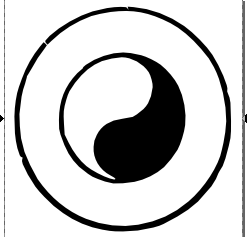
- Screenshot_logo_scan_1.png (12.7 KiB) Viewed 1398 times
Hide and lock this new layer.
2.The second trace is optimized for tracing the lettering.
Select the photo again, and open the bitmap tracing tool
change both threshhold settings to 0.65 ( it will become 0.650...but thats normal and exactly what we want )
Leave the other settings unchanged, and click "ok" to execute the trace.
Select the traced image ( it is usually already selected as soon as the tracing process completes)
cut and then paste the trace in place on a new layer.
Now you should have 3 layers...one is the original photo, the next is your first tracing, and the third is
your second tracing.
I hope this explanation helped make the first few steps of the tutorial a bit clearer, but if you have more questions, or this only made it all more confusing don't hesitate to say so.
I'd go over the rest of it for you, but its late and Im tired so lets just see if this little bit is understandable.
Re: Northern pacific railway logo tutorial
Hi
Thank's I have now finished the tutorial.
Thank's I have now finished the tutorial.