 This is a read-only archive of the inkscapeforum.com site. You can search for info here or post new questions and comments at
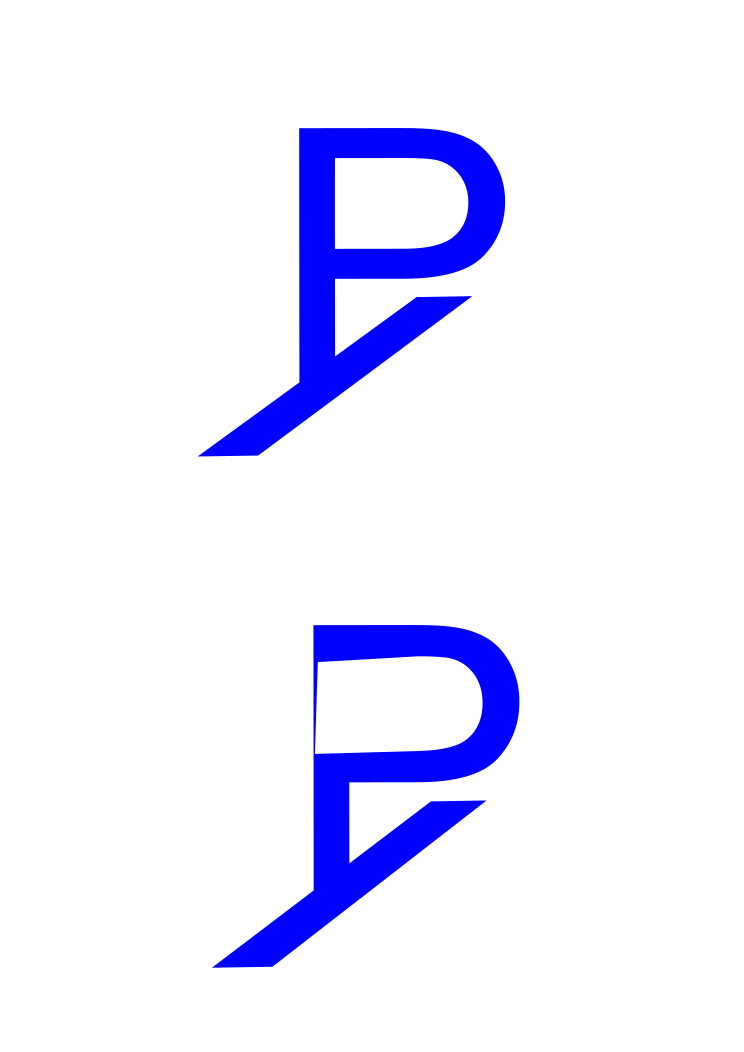
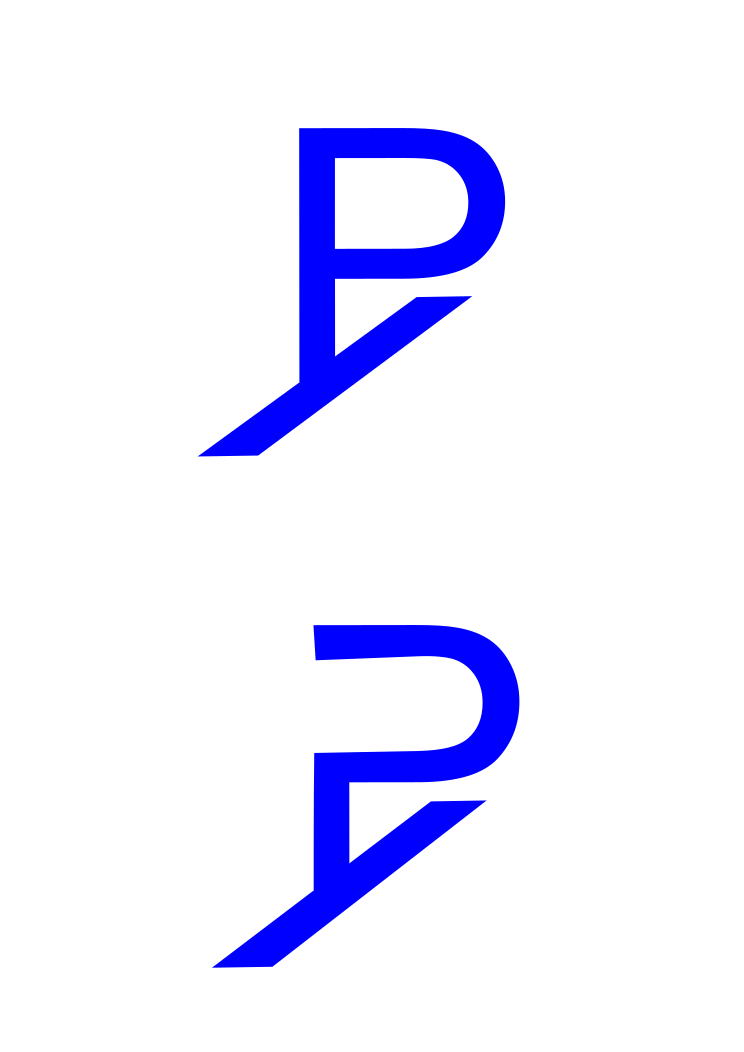
 I'm new to Inkscape, and was trying to design a new logo for myself. I am trying to make the letter P "hollow" if you will. I like the style, the font, and the shading on the logo, but no matter how I try, I can't erase the top left line in the P. The bottom image is what I'm going for, but I don't want a line at all. The eraser is difficult (as I have read in other posts). Any help or suggestions would be appreciated. I should say SLOW and DELIBERATE suggestions would be appreciated.
Thanks,
Yad
Help with erasing or fixing paths

Re: Help with erasing or fixing paths
Welcome to InkscapeForum!
I fixed it using node editing. I can explain how, if you like. Or you could just use this one
I fixed it using node editing. I can explain how, if you like. Or you could just use this one
- Attachments
-
- problem1.svg
- (10.66 KiB) Downloaded 158 times
Basics - Help menu > Tutorials
Manual - Inkscape: Guide to a Vector Drawing Program
Inkscape Community - Inkscape FAQ - Gallery
Inkscape for Cutting Design
Manual - Inkscape: Guide to a Vector Drawing Program
Inkscape Community - Inkscape FAQ - Gallery
Inkscape for Cutting Design
Re: Help with erasing or fixing paths
I would love to know how it was done. I imagine it was some type of node path that was changed, but I was unable to make it happen. Thanks!!
Re: Help with erasing or fixing paths
Oh, no problem. It's just one of those things that takes 2 seconds to do it, but takes a lot longer to explain.

For some reason, my Prnt Scrn feature doesn't capture my mouse pointer. But you can see the highlighted nodes on the left side of the area you want to remove (in the red circle). Then click "Delete segments between 2 nodes" button.
Next do the same thing for the 2 nodes on the right side of the area in the red circle. The extra material that you want to remove is still there, and I don't clearly understand why. But the next steps will get rid of it.
Next, still using the Node tool, drag a selection box around the 2 nodes at the top of the area to be removed. (You can probably select them one at a time, using Shift key, because they aren't precisely on top of each other, but the selection box technique is faster. Anyway, after you have them both selected, click "Join selected nodes" button, on Node tool control bar. Then do the same thing for the bottom 2 nodes. And that should do it.
There is a kind of "quick and dirty" way to do it. If you enable snapping so that cusp nodes snap, you can drag 1 of the 2 top nodes towards the other one, until they snap. And do the same for the bottom one. It does make that little section not visible, but really, it's still there. I think it's better to do the first way, because it leaves a cleaner kind of object, and that little section won't come back to haunt you later (as it might if you simply snapped nodes).
If I had started this from the beginning, I would have used node editing to change the P before applying the filter. I don't know if this new 0.48.4 version which just came out (which is all bug fixes and no new features) might have addressed the issues with the Eraser tool. I hope so!
Good luck
For some reason, my Prnt Scrn feature doesn't capture my mouse pointer. But you can see the highlighted nodes on the left side of the area you want to remove (in the red circle). Then click "Delete segments between 2 nodes" button.
Next do the same thing for the 2 nodes on the right side of the area in the red circle. The extra material that you want to remove is still there, and I don't clearly understand why. But the next steps will get rid of it.
Next, still using the Node tool, drag a selection box around the 2 nodes at the top of the area to be removed. (You can probably select them one at a time, using Shift key, because they aren't precisely on top of each other, but the selection box technique is faster. Anyway, after you have them both selected, click "Join selected nodes" button, on Node tool control bar. Then do the same thing for the bottom 2 nodes. And that should do it.
There is a kind of "quick and dirty" way to do it. If you enable snapping so that cusp nodes snap, you can drag 1 of the 2 top nodes towards the other one, until they snap. And do the same for the bottom one. It does make that little section not visible, but really, it's still there. I think it's better to do the first way, because it leaves a cleaner kind of object, and that little section won't come back to haunt you later (as it might if you simply snapped nodes).
If I had started this from the beginning, I would have used node editing to change the P before applying the filter. I don't know if this new 0.48.4 version which just came out (which is all bug fixes and no new features) might have addressed the issues with the Eraser tool. I hope so!
Good luck
Basics - Help menu > Tutorials
Manual - Inkscape: Guide to a Vector Drawing Program
Inkscape Community - Inkscape FAQ - Gallery
Inkscape for Cutting Design
Manual - Inkscape: Guide to a Vector Drawing Program
Inkscape Community - Inkscape FAQ - Gallery
Inkscape for Cutting Design