 This is a read-only archive of the inkscapeforum.com site. You can search for info here or post new questions and comments at
 Hi all,
I'm new to Inkscape but it seems like an extreemly powerful tool, with a smarter UI than Illustrator.
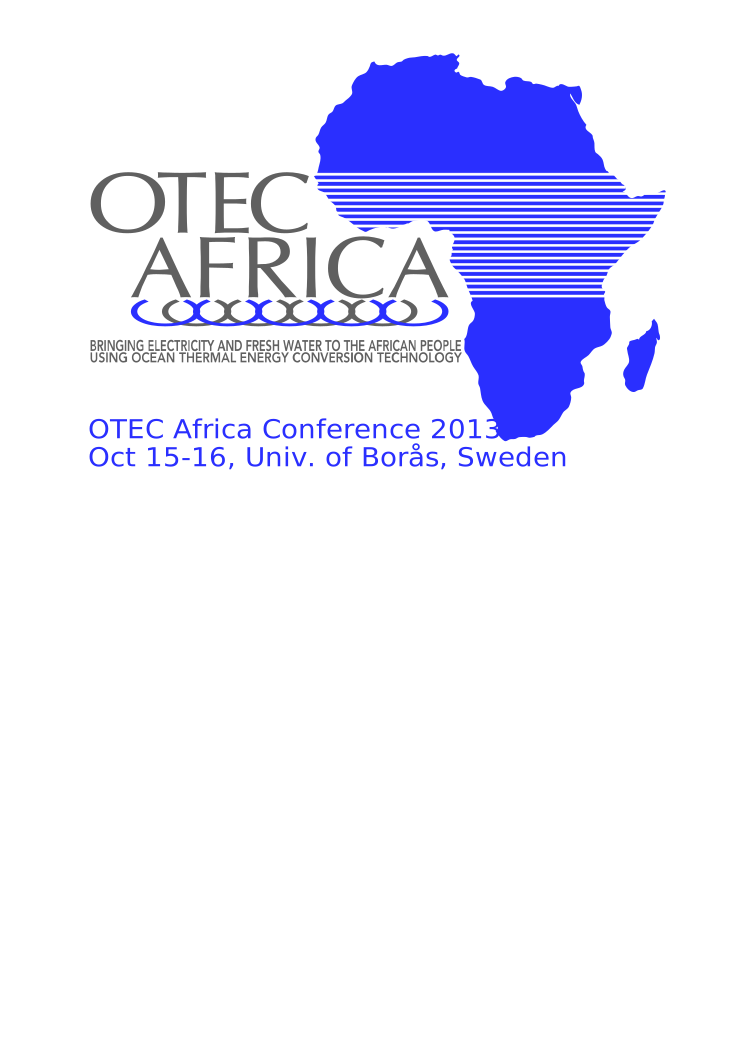
I have created a logo for a conference (attached). On top of the image of Africa (a vector object, or so I hope anyway...) there are some white stripes, as a raster. I have added these stripes manually, but in reality, I want the bottom object (Africa) to break apart. The reason is that we want this image to go on a t-shirt, and if so, I think this must be corrected or the printing company will end up painting Africa blue and then trying to paint white stripes on top of it.
I selected the Africa object and the stripes and tried all the object options. Exclusion (XOR) did almost what I wanted, but as the stripes stretch outside the "coastline", I get small ugly leftovers there. Is there a better way to do this?
Thanks for this fantastic piece of software.
Petter, Sweden
Breaking up an object
-
petter2013
- Posts: 4
- Joined: Sun Sep 22, 2013 6:10 pm
Breaking up an object
- Attachments
-
- OTEC_Africa_Conference_logo.svg
- (64.93 KiB) Downloaded 159 times
-
petter2013
- Posts: 4
- Joined: Sun Sep 22, 2013 6:10 pm
Re: Breaking up an object
Hello again,
As it took a while for the message to appear, I just want to say that I still don't know how to acccomplish this, so I still need help (or redo everything in Illustrator if I can find someone with a copy of it).
So, please help!
Petter
As it took a while for the message to appear, I just want to say that I still don't know how to acccomplish this, so I still need help (or redo everything in Illustrator if I can find someone with a copy of it).
So, please help!
Petter

Re: Breaking up an object
Image of Africa is vector drawing and that makes it a lot easier to accomplish your aim.
You should try selecting all of the stripes and then make Union (Ctrl+"+"). That way you`ll get a single shape which should be placed on top of Africa and then simply do Difference (Ctrl+"-"). Result will be the single shape, as usually desired for printing.
You should try selecting all of the stripes and then make Union (Ctrl+"+"). That way you`ll get a single shape which should be placed on top of Africa and then simply do Difference (Ctrl+"-"). Result will be the single shape, as usually desired for printing.
 <<< click! - but, those with a cheaper tickets should go this way >>>
Re: Breaking up an object
Hi.
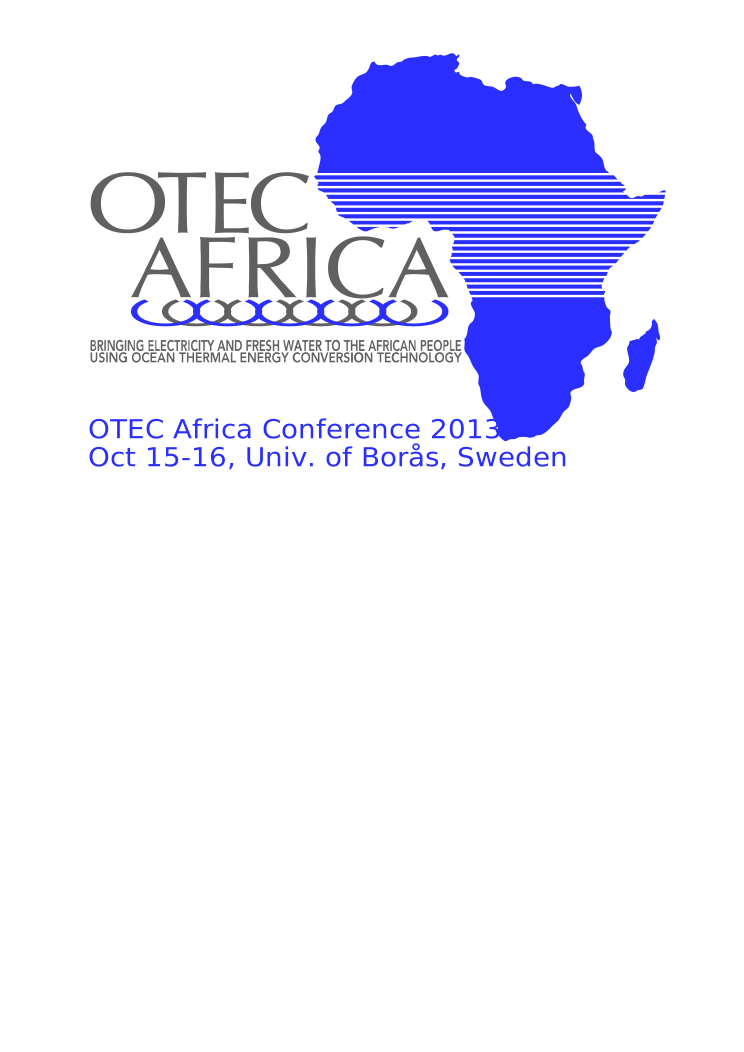
That method almost works but there were some details off for that.
Some of the stripes didn't go over the edge of the blue shape, and
all of them had outline too.
So after adjusting the widths of the stripes,
select all of them and press Ctrl+K to combine them,
Ctrl+Alt+C to convert outlines to paths,
Ctrl+Shift+K to break shapes apart,
Ctrl++ to add all paths together.
Then you can subtract it from the blue path with Ctrl+-.
That method almost works but there were some details off for that.
Some of the stripes didn't go over the edge of the blue shape, and
all of them had outline too.
So after adjusting the widths of the stripes,
select all of them and press Ctrl+K to combine them,
Ctrl+Alt+C to convert outlines to paths,
Ctrl+Shift+K to break shapes apart,
Ctrl++ to add all paths together.
Then you can subtract it from the blue path with Ctrl+-.
- Attachments
-
- hlp78.svg
- (58.87 KiB) Downloaded 150 times
-
petter2013
- Posts: 4
- Joined: Sun Sep 22, 2013 6:10 pm
Re: Breaking up an object
Both of you - thank you so much for your replies!
Now I still have a few days left working with the t-shirt company...
Thanks again,
Petter
Now I still have a few days left working with the t-shirt company...
Thanks again,
Petter