This is a read-only archive of the inkscapeforum.com site. You can search for info here or post new questions and comments at
 I'm trying to do something with Inkscape that I've done before with CorelDraw and I can't find the best way to do it -- any advice much appreciated! I want to draw a map of railways and mark the location of stations along the railway-lines (and this map is small enough to work with 32-bit Inkscape as well as with 64-bit). In CorelDraw I could use "Symbol Manager" to design a symbol and then use this for each instance, and if I wanted to change all instances of the symbol later, I could just edit the symbol itself.
In Inkscape I've found two ways of getting the result I want, but each seems to have disadvantages. I can put a circle or whatever at one station location and then clone that to every other location. Because all the station-symbols are then clones, I can edit them if I want simply by changing the original. But the process of creating all those clones is very slow and tedious (not least in the dragging of each clone to the desired location). Or in Inkscape 49 I can use "Symbols", create a symbol, and then insert that in all the locations. This is a very easy process indeed and just what I want. But it then does not seem possible to edit the master symbol in "Symbols" if I want to make a change to the whole lot. Am I missing something? (And yes, I know I should make my mind up and stick to it and not want to make any changes, but I'm not that organised, I'm afraid....)
Clones /symbols
Re: Clones /symbols
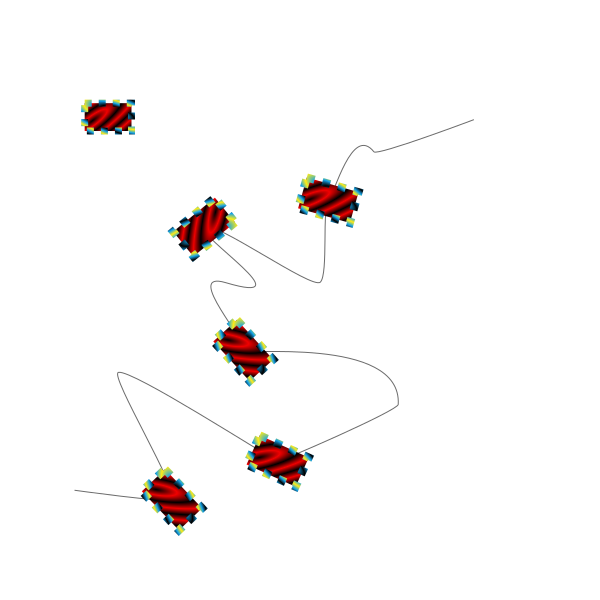
You could try to convert objects to markers, and set them to inner nodes.
For that, you can use clones too, so it will refresh if you change the parent object.
If the original path has more nodes, duplicate it and delete the nodes you don't want to be marked, set stroke colour to invisible by adding a 0 alpha value, and set the inner node markers to what you made from the clone.
Keep in mind when you convert an object to a marker, it will be assigned to a 1 px wide stroke, and, you will need to set another marker first to make it appear in the dropdown list under the fill and stroke panel (Shift+Ctrl+F).
Also that the markers are centered with the original parent's bounding box center, so if you scale the parent object the markers can go off.
For that, you can use clones too, so it will refresh if you change the parent object.
If the original path has more nodes, duplicate it and delete the nodes you don't want to be marked, set stroke colour to invisible by adding a 0 alpha value, and set the inner node markers to what you made from the clone.
Keep in mind when you convert an object to a marker, it will be assigned to a 1 px wide stroke, and, you will need to set another marker first to make it appear in the dropdown list under the fill and stroke panel (Shift+Ctrl+F).
Also that the markers are centered with the original parent's bounding box center, so if you scale the parent object the markers can go off.
- Attachments
-
- hlp135.svg
- (5.68 KiB) Downloaded 201 times